Overview
Daisy-Chaining is a term used in the context of display technology to describe a method of connecting multiple monitors in a sequential manner. In this setup, the first monitor is directly connected to the computer, and each subsequent monitor is connected to the preceding one. This configuration allows for an extended display across several screens while minimizing the number of cables interfacing with the computer.
What You Need
Required Hardware
- A computer with USB‑C (DP Alt Mode), DisplayPort, or Thunderbolt 3/4
- ViewSonic monitors with:
- DisplayPort In + DisplayPort Out (for MST), or
- Thunderbolt In + Thunderbolt Out (for TB daisy‑chain)
- DisplayPort or Thunderbolt cables
Supported Monitor Series
- VG Series: VG2456, VG2756‑2K, VG56/VG56V, VG40V
- VP Series: VP2468/VP2468a, VP2768/VP2768a
- Thunderbolt VP Series: VP2776T‑4K and similar
These is not a complete list. Verify with your model's specification.
Setup Procedure
1. Connect PC → Monitor #1
You can start the chain in one of two ways:
Option A — DisplayPort Connect PC DP‑Out to Monitor #1 DP‑In.
Option B — USB‑C Input
- Connect a USB‑C cable from your laptop’s USB‑C/Thunderbolt port to Monitor #1 USB‑C port.
- Switch input if needed: OSD → Input Select → USB‑C.
- Confirm the laptop detects the monitor.
- Daisy‑chain the additional monitors using DisplayPort MST (DP‑Out to DP‑In).
Important:
USB‑C is for input only. The daisy‑chain still uses DP‑Out → DP‑In between monitors.
Option C — Thunderbolt Input If the monitor has a Thunderbolt port:
- Connect PC Thunderbolt → Monitor #1 Thunderbolt In.
- Proceed with Thunderbolt daisy‑chain.
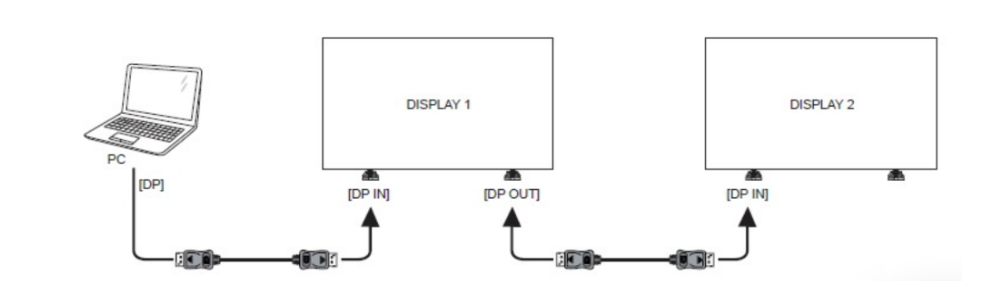
2. DisplayPort MST Daisy‑Chaining (DP‑Out → DP‑In)
- Connect Monitor #1 DP‑Out → Monitor #2 DP‑In.
- If adding more displays, continue DP‑Out → DP‑In from each monitor to the next.
- Make sure cables are true DisplayPort 1.2 or higher.
Enable MST on Monitor #1:
- Open the OSD.
- Go to Main Menu → Setup Menu → MST.
- Set MST to ON.
- Leave MST OFF on secondary monitors unless continuing the chain.
If MST is disabled, the additional monitors will show a duplicate screen.
Use this method if both your PC and monitors support Thunderbolt.
Requirements:
- PC with Thunderbolt 3/4 (USB4)
- ViewSonic monitor with Thunderbolt In and Thunderbolt Out
- Thunderbolt‑certified cables
Steps:
- Connect Laptop Thunderbolt → Monitor #1 Thunderbolt In.
- Connect Monitor #1 Thunderbolt Out → Monitor #2 Thunderbolt In.
- Continue for additional Thunderbolt devices if supported.
- MST settings are NOT required for Thunderbolt chains.
Performance Notes:
- Some ViewSonic VP ColorPro monitors support dual 4K 60Hz via Thunderbolt.
- Power Delivery varies (such as 90W or 100W depending on model).
macOS vs Windows:
- macOS fully supports Thunderbolt daisy‑chains.
- macOS does not support DisplayPort MST extended mode.
- Windows supports both MST and Thunderbolt chains.
Limitations
While a majority of graphics cards or laptops have the capability to support two to three external monitors connected via daisy-chaining, it is recommended to validate the specifics of your individual computer or GPU model for “MST” or “Multi-Stream Transport” compatibility.
Following is a chart delineating the resolution breakdown when connecting multiple monitors. Please note that the actual resolution may vary based on the specific capabilities of your hardware.
| Display Resolutions (60Hz) | Max. Number of Displays |
| 1680x1050 (WSXGA) | 5 |
| 1920x1080 (FHD, 1080p) or 1920x1200 | 4 |
| 2560x1600 (WQXGA) | 2 |
| 3840x2160 (UHD, 4K) or 4096x2160 (4Kx2K) | 1 |
Tutorial Video
For additional questions, please contact ViewSonic's Support by submitting a support ticket HERE or by Phone: US: 800-688-6688, CAN: 866-463-4775. ViewSonic’s call center hours: M-F, 6 AM - 6 PM PST.
Was this article helpful?
That’s Great!
Thank you for your feedback
Sorry! We couldn't be helpful
Thank you for your feedback
Feedback sent
We appreciate your effort and will try to fix the article