Applies to:
- CDE4312, CDE5512, CDE6512, CDE7512
- CDE4330, CDE5530, CDE6530, CDE7530, CDE8630, CDE9830
- CDE4331, CDE5531, CDE6531, CDE7531, CDE8631, CDE9831
Advantages of Auto-Reboot
- Minimized Downtime: Quickly recovers from power outages or system crashes, reducing downtime.
- Prevents Performance Degradation: Rebooting clears memory and cache, and closes background applications.
- Simplified Management: Reduces the need for manual intervention to restart devices.
This feature ensures that the board shuts down at the scheduled time.Instructions:
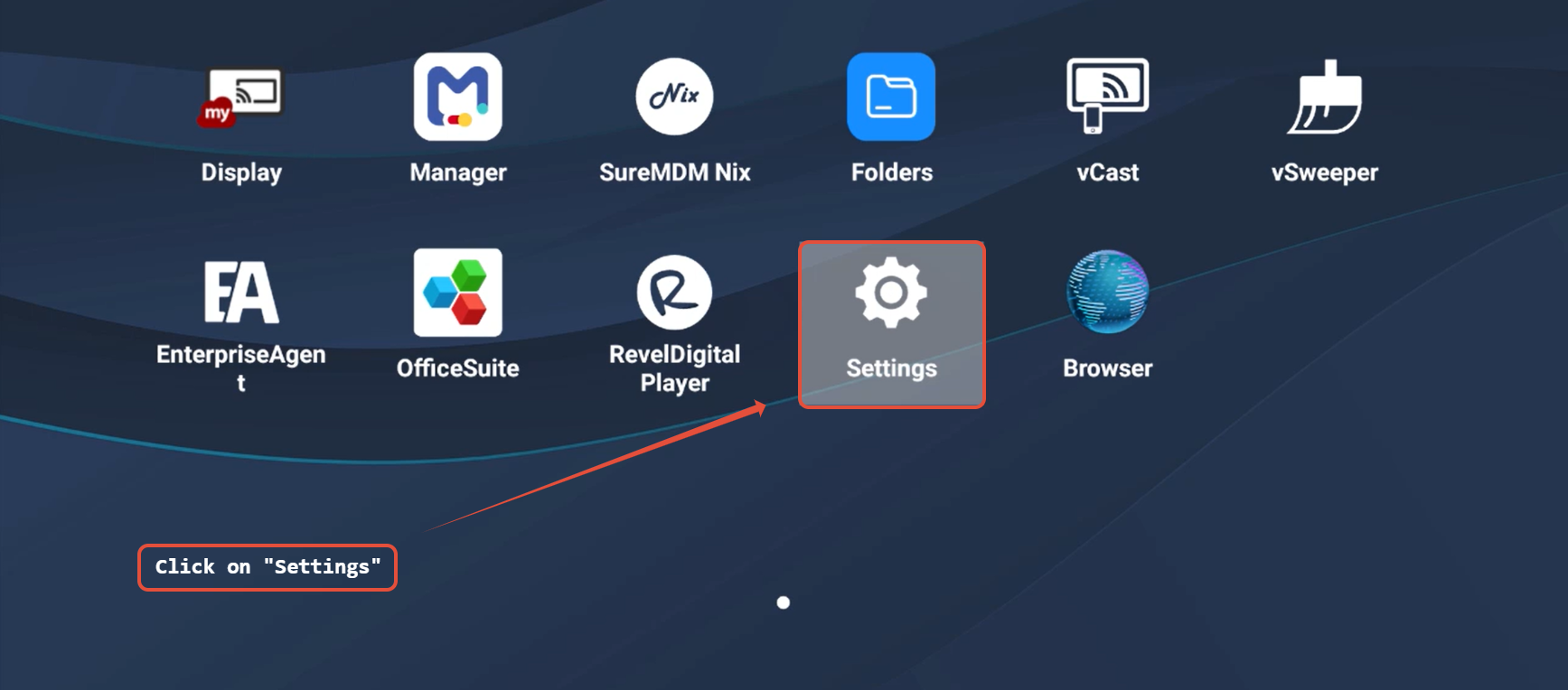
- Open Settings.
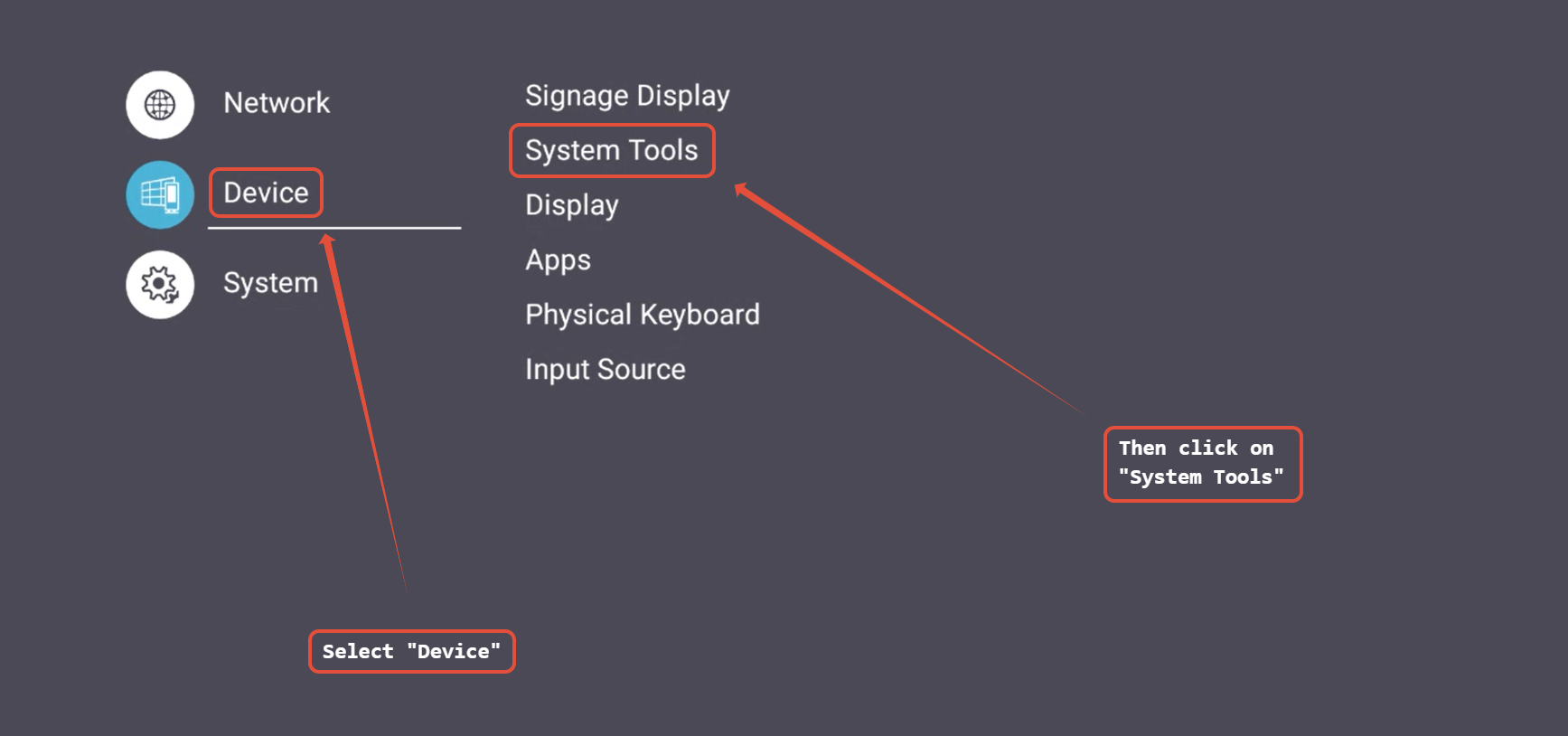
- Select Device, and then System Tools.
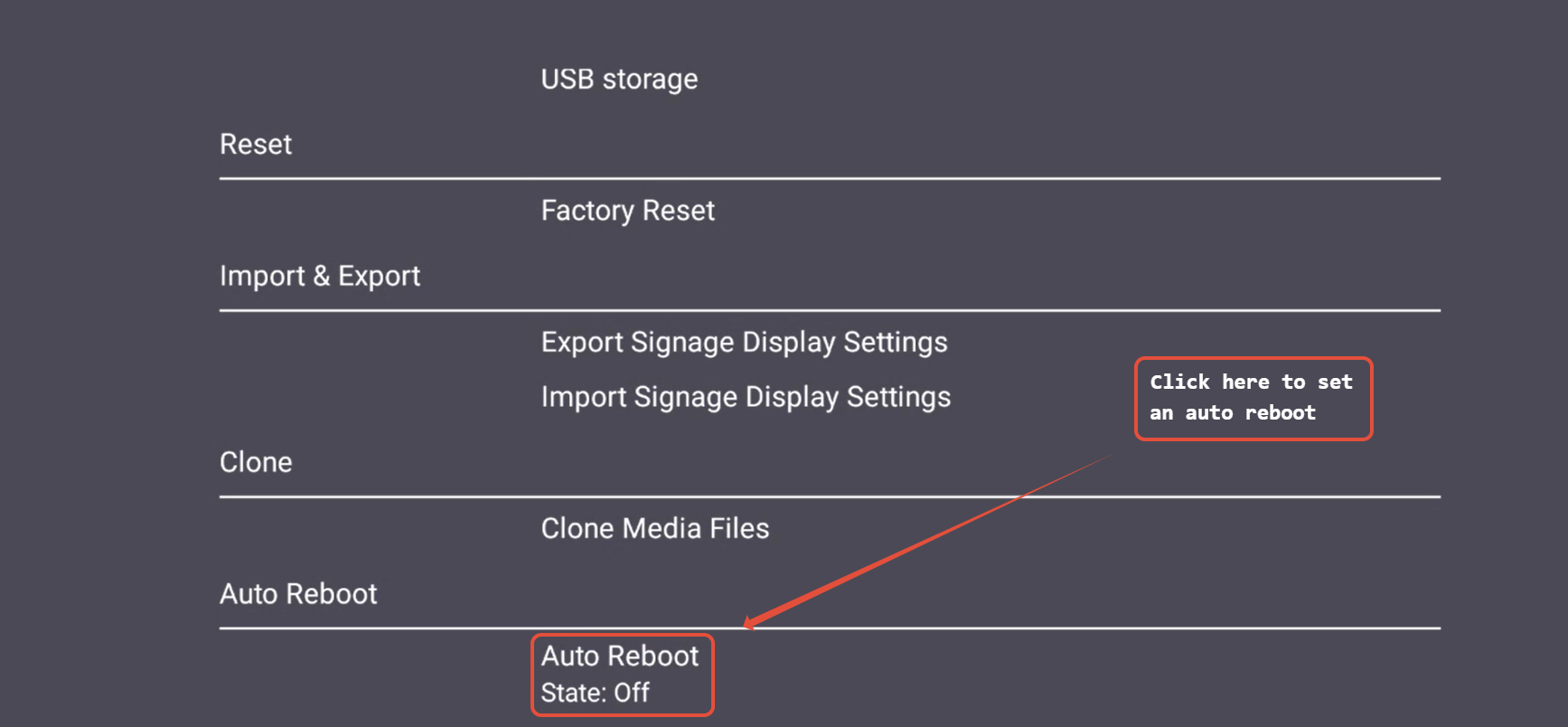
- Within System Tools, Auto Reboot will be located at the bottom.
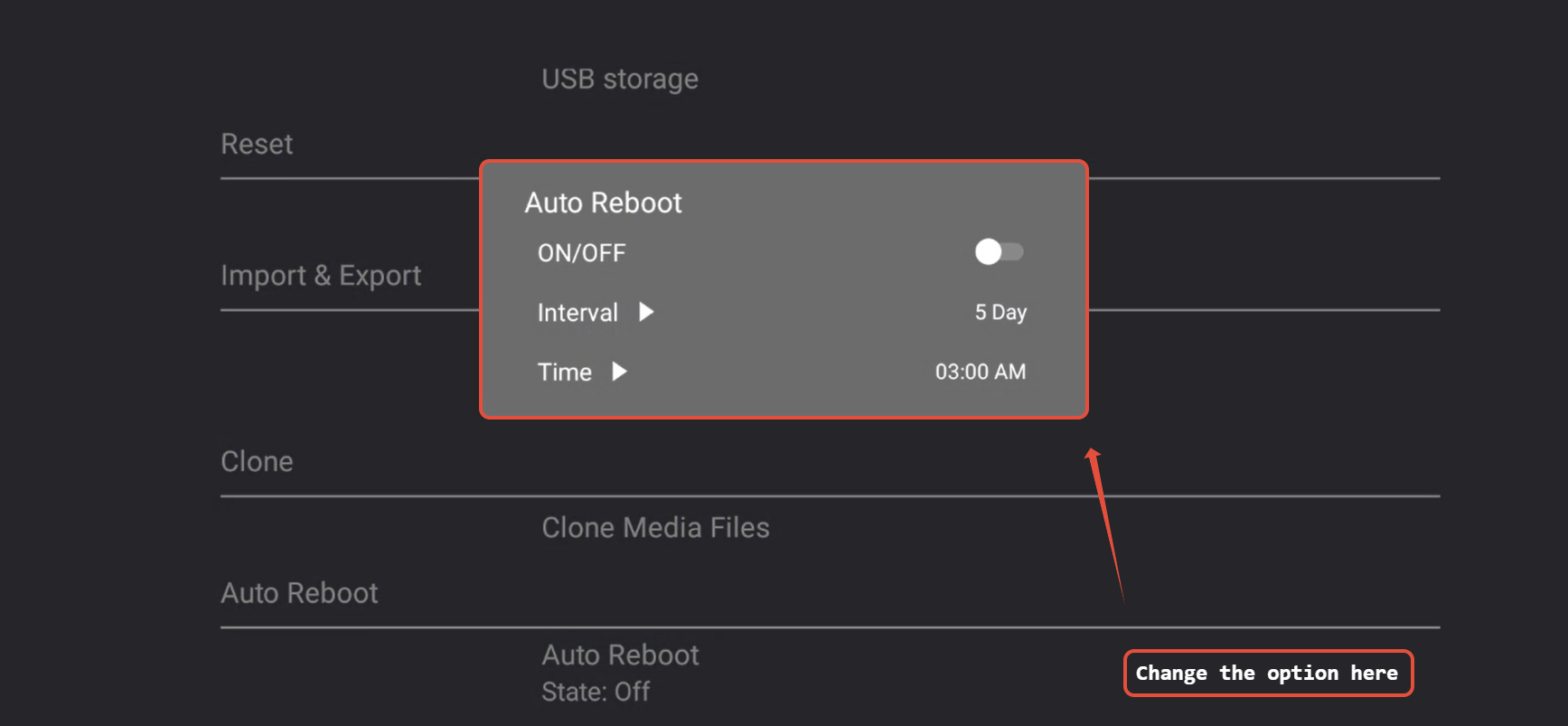
- Tap Auto Reboot, set to ON. Then, set the Interval and the Time.
Suggested Power Mode setting
- Press on Menu on the remote. Then, select Advanced on the left pane, and Power Save on the right pane.
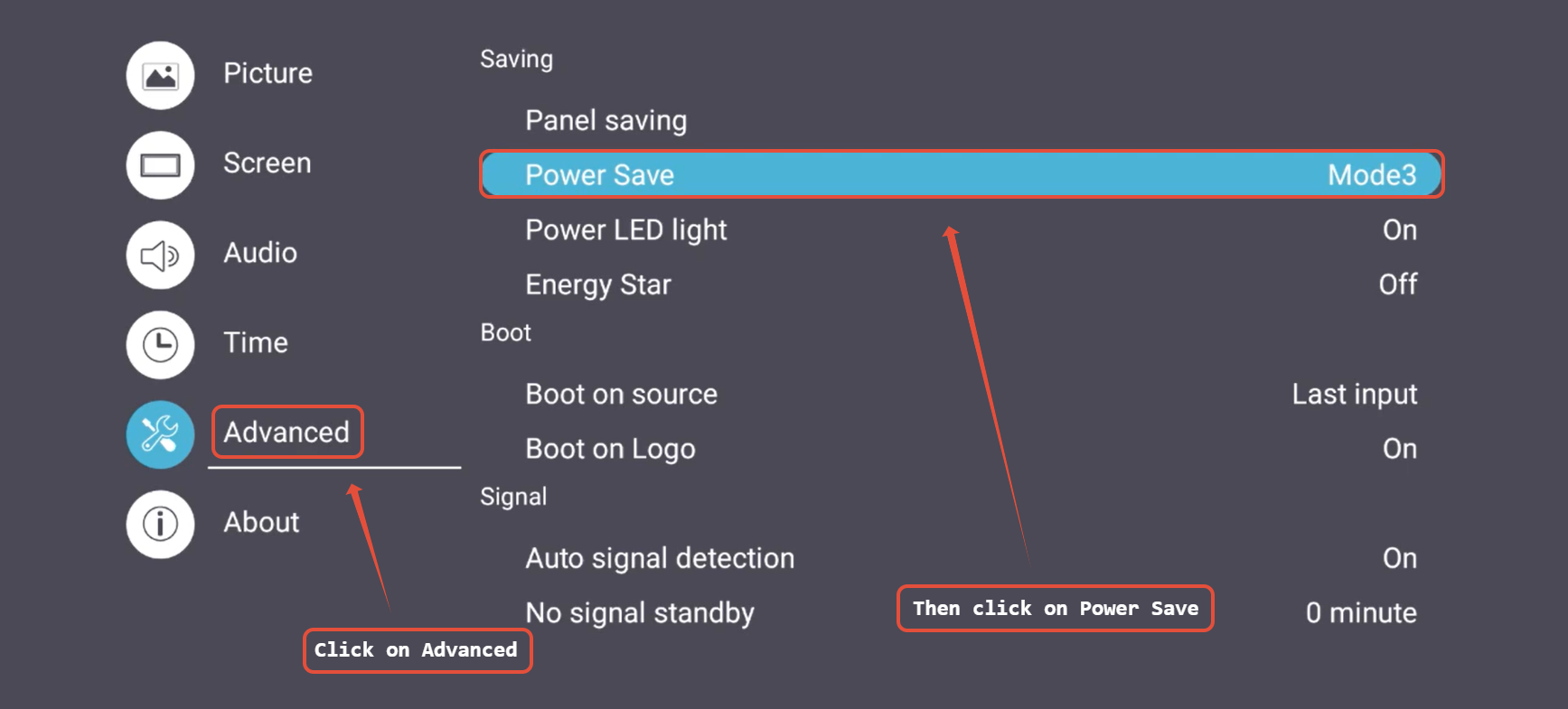
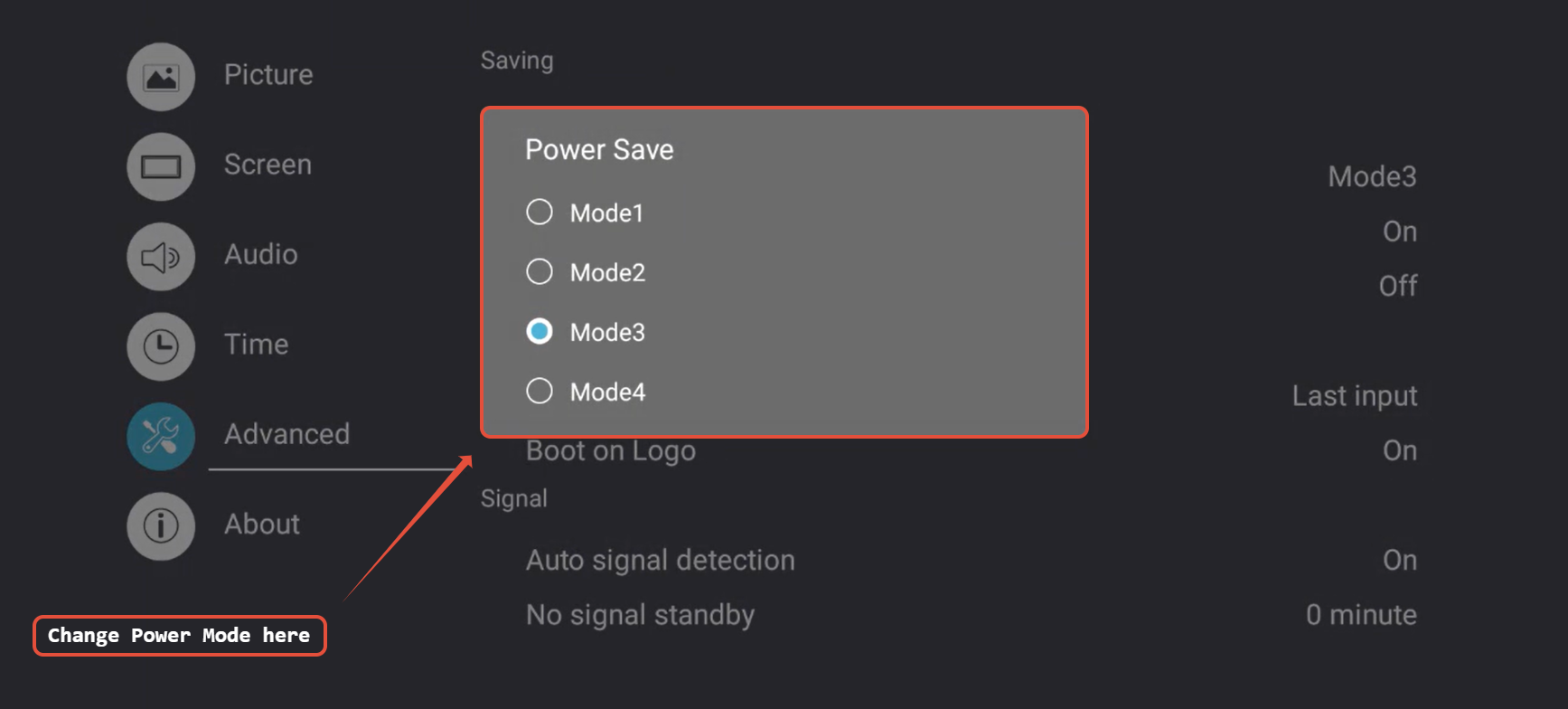
- Set the Power Save mode to Mode 3.
For additional questions, please contact ViewSonic's Support by submitting a support ticket HERE or by Phone: US: 800-688-6688, CAN: 866-463-4775. ViewSonic’s call center hours: M-F, 6 AM - 6 PM PST
Was this article helpful?
That’s Great!
Thank you for your feedback
Sorry! We couldn't be helpful
Thank you for your feedback
Feedback sent
We appreciate your effort and will try to fix the article