This guide explains how to install a firmware pack on ViewSonic IFP50 Series Interactive Flat Panel Displays using a USB flash drive.
Applicable Models:
This guide applies to the following ViewSonic IFP50 Series interactive displays:
- IFP5550, IFP5550-2, IFP5550-3
- IFP6550, IFP6550-2, IFP6550-3
- IFP7550, IFP7550-2, IFP7550-3
- IFP8650, IFP8650-2, IFP8650-3
- IFP9850, IFP9850-3, IFP9850-4S
Before You Begin
Please prepare the following items before starting the installation:
- A USB flash drive (8–32 GB recommended)
- USB drive formatted as FAT32
- The correct firmware pack downloaded from ViewSonic Support
- A stable power source (do not unplug the display during the update)
IMPORTANT NOTES:
- Installing incorrect firmware or interrupting the update process may cause system issues.
- Do not unplug the display during the update.
- Use only firmware provided by ViewSonic.
- Do not attempt to access factory or hidden menus.
- If the update fails, do not repeat the process multiple times—contact ViewSonic Support.
Instructions:
Step 1: Download the Firmware Pack
- Visit the ViewSonic Support website.
- Search for your exact IFP50 model number.
- Identify the Panel Code and download the latest Firmware Pack for your display.
- IFPxx50‑3 or Panel Code BE
→ Download IFPxx50‑3 Firmware Pack_yyyymmddIFP5550‑3 (Older Serial Numbers)
SN before:- W1Y21221201F
- WA9212212001
→ Use IFP5550‑3 Firmware Pack_yyyymmdd
IFP5550‑3 (Newer Serial Numbers)
SN after:- W1Y21221201E
- WA9212212000
→ Use IFP5550‑3_BE2 Firmware Pack_yyyymmdd
IFPxx50‑3_BE2
→ Download IFPxx50‑3_BE2 Firmware Pack_yyyymmddIFPxx50‑3_CT2 or Panel Code CT
→ Download IFPxx50‑3_CT2 Firmware Pack_yyyymmdd
- IFPxx50‑3 or Panel Code BE
- The file will download as a .zip file.
Step 2: Prepare the USB Flash Drive
- Insert the USB flash drive into your computer.
- Format the USB drive as FAT32.
- Copy the entire zip to the root directory of the USB drive.
Do not rename, modify, or place the folder inside another directory.Step 3: Insert the USB Drive into the Display
- Power on the ViewSonic IFP50 display.
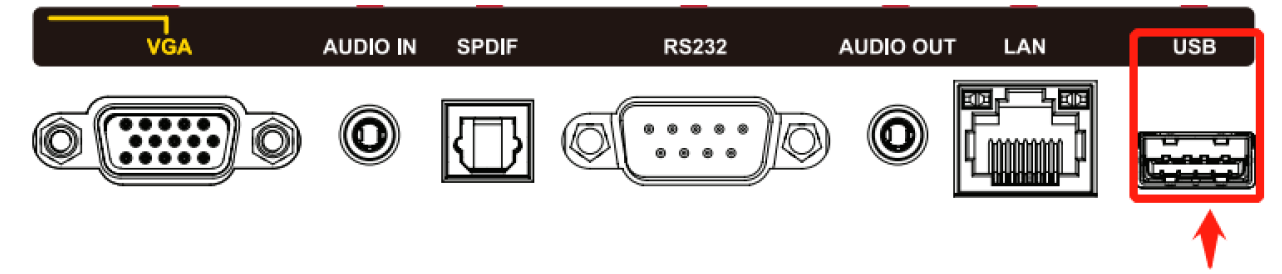
- Insert the USB flash drive into one of the display’s USB ports.
Step 4: Start the Firmware Pack Installation
- On the display, open Settings.
- Navigate to:
About → System Update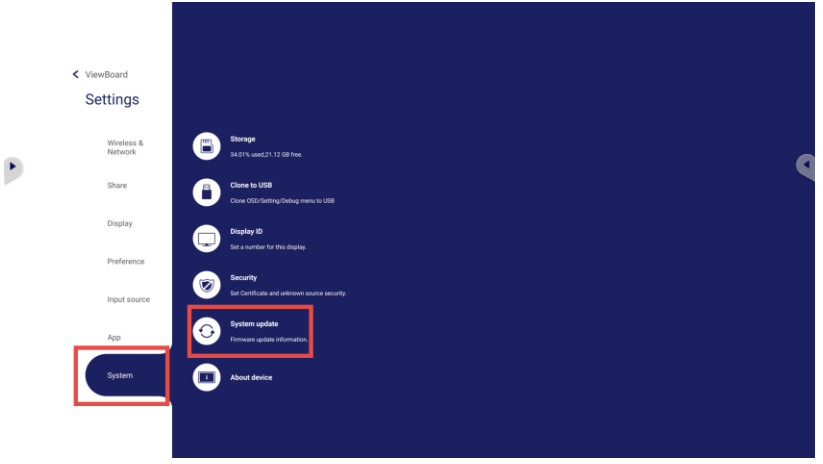
- Select Local Update.
- Browse to the USB drive and select the firmware pack file.
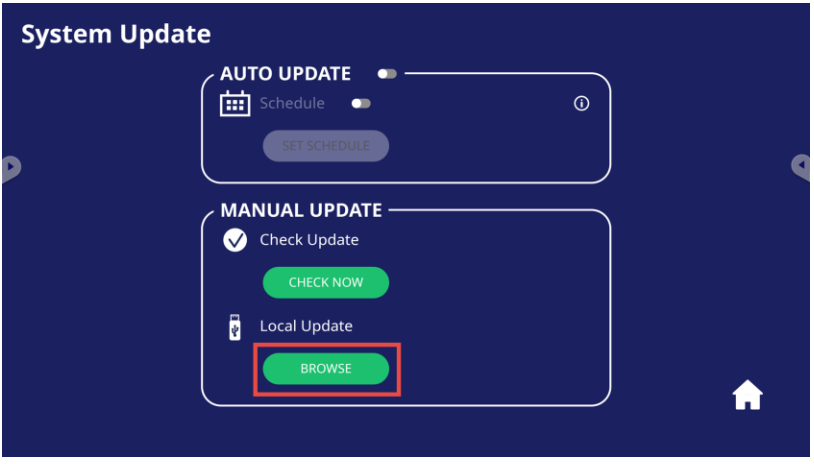
- Confirm the update when prompted to begin the firmware installation.
Step 5: Complete the Update
- The display will automatically reboot during the process.
- The update typically takes 5–10 minutes.
- Do not power off or remove the USB drive during installation.
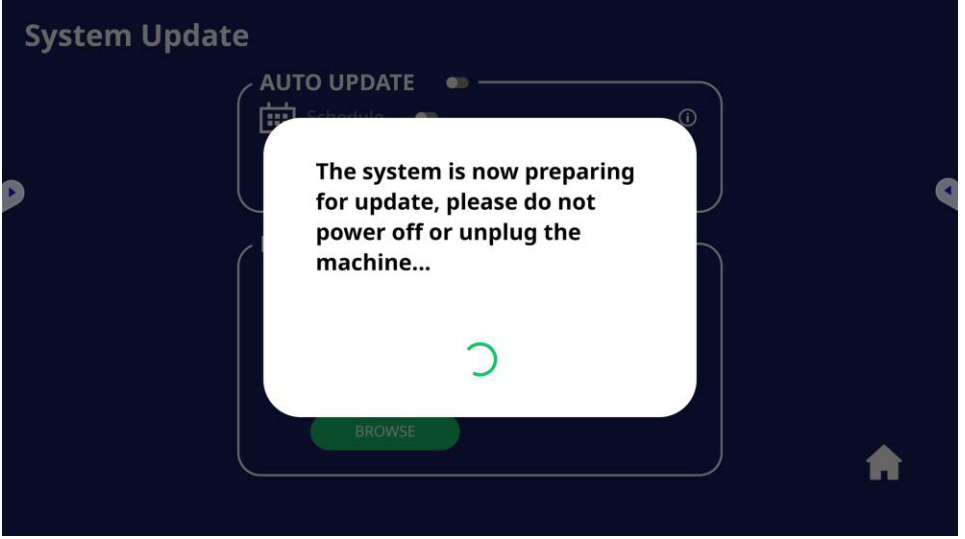
Once completed, the display will restart normally.
Step 6: Verify Installation
After reboot:
- Go to Settings → About.
- Confirm the firmware version matches the installed update.
When the version update is successful, no further action is required—the installation is complete.
For additional questions, please contact ViewSonic's Support by submitting a support ticket HERE or by Phone: US: 800-688-6688, CAN: 866-463-4775. ViewSonic’s call center hours: M-F, 6 AM - 6 PM PST.
Was this article helpful?
That’s Great!
Thank you for your feedback
Sorry! We couldn't be helpful
Thank you for your feedback
Feedback sent
We appreciate your effort and will try to fix the article